

How to Use the Genesis Infotainment System?

When it comes to luxury vehicles, Genesis doesn’t just excel in performance and design—it leads the way with cutting-edge infotainment systems that redefine convenience, entertainment, and connectivity.
For Kansas City drivers seeking a seamless blend of technology and luxury, the Genesis infotainment system offers an unmatched driving experience.
In this guide, we’ll explore the features, benefits, and model-specific details, and why Genesis infotainment systems stand out. Whether you’re a tech enthusiast or simply want a more enjoyable commute, Genesis has you covered.
What Makes the Genesis Infotainment System Excel?
Genesis vehicles integrate advanced technology into their infotainment systems, ensuring intuitive functionality and a luxury feel. Designed to enhance safety, entertainment, and productivity, these systems are among the most advanced in the automotive industry.
Why Genesis Infotainment Stands Out:
- High-resolution displays: Screens range from 8 inches to an impressive 14.5 inches, offering crystal-clear visuals.
- Intuitive controls: Touchscreen interfaces combined with physical knobs and voice commands for ease of use.
- Seamless connectivity: Features like Apple CarPlay, Android Auto, and Genesis Connected Services keep drivers connected on the go.
- Personalization: Customizable settings ensure each drive is tailored to your preferences.
- Integrated safety tech: Infotainment systems work in tandem with safety features like navigation-based cruise control and driver attention monitoring.
Key Features of the Genesis Infotainment System
Genesis vehicles are designed with tech-savvy drivers in mind. Here are some of the standout features across the lineup:
Advanced Navigation
- 3D Mapping: Provides detailed views of roads and landmarks.
- Real-time traffic updates: Ensures faster, more efficient routes.
- Voice-guided directions: Keeps your hands on the wheel and eyes on the road.
Connectivity Options
- Apple CarPlay and Android Auto: Sync your smartphone seamlessly for hands-free calls, music streaming, and access to your favorite apps.
- Bluetooth: Quickly pair your devices for wireless audio and calls.
- Genesis Connected Services: Offers remote start, vehicle diagnostics, and emergency assistance through a mobile app.
Entertainment and Audio
- Premium sound systems: Models like the GV80 and G90 feature Lexicon® sound systems with up to 21 speakers for theater-quality audio.
- Streaming capabilities: Stream your favorite playlists or podcasts with built-in apps.
- Rear-seat entertainment options: Available on select models, keeping passengers entertained on long drives.
Touchscreen Functionality
- Split-screen mode: Allows you to view navigation and entertainment controls simultaneously.
- Haptic feedback: Provides a tactile response for precise inputs.
- Customizable home screen: Tailor the interface to prioritize your most-used features.
Driver-Centric Controls
- Rotary controller: Provides an alternative to touchscreen input, allowing effortless control without distraction.
- Heads-Up Display (HUD): Projects key information like navigation, speed, and audio settings directly onto the windshield.
Genesis Vehicle Lineup: Infotainment Features by Model
Genesis G70: Compact Luxury Sedan
- Display: 10.25-inch high-definition touchscreen.
- Audio System: Standard 6-speaker system with an optional 15-speaker Lexicon® Premium Sound System.
- Key Infotainment Features:
- Standard Apple CarPlay and Android Auto.
- Customizable digital instrument cluster.
The G70’s infotainment system offers an ideal balance of sportiness and tech, perfect for Kansas City drivers who want luxury in a compact package.
Genesis G80: Mid-Size Luxury Sedan
- Display: 14.5-inch split-screen touchscreen.
- Audio System: 17-speaker Lexicon® Premium Sound System for immersive sound.
- Key Infotainment Features:
- Navigation-based smart cruise control with real-time traffic data.
- Voice recognition for hands-free navigation and phone controls.
The G80’s expansive screen and intuitive controls make it a standout in the mid-size luxury sedan segment.
Genesis G90: Flagship Luxury Sedan
- Display: Dual 12.3-inch screens (digital gauge cluster and infotainment screen).
- Audio System: 21-speaker Lexicon® Premium Surround Sound with QuantumLogic®.
- Key Infotainment Features:
- Rear-seat controls for passengers to adjust audio and climate settings.
- Advanced noise-cancellation technology for pristine audio clarity.
The G90 delivers a first-class infotainment experience, making every drive an unparalleled luxury.
Genesis GV70: Compact Luxury SUV
- Display: 14.5-inch touchscreen.
- Audio System: Available Lexicon® 15-speaker Premium Audio System.
- Key Infotainment Features:
- Augmented reality navigation with live video feed.
- Built-in ambient lighting themes that sync with your music.
The GV70’s infotainment system combines cutting-edge tech with user-friendly design, offering versatility for families and adventurers alike.
Genesis GV80: Mid-Size Luxury SUV
- Display: 14.5-inch high-definition touchscreen with split-screen functionality.
- Audio System: 21-speaker Lexicon® Premium Sound System.
- Key Infotainment Features:
- Touch and voice control for navigation and entertainment.
- Rear entertainment screens with HDMI and USB inputs (optional).
The GV80 provides a premium infotainment experience, perfect for Kansas City families seeking luxury and connectivity.
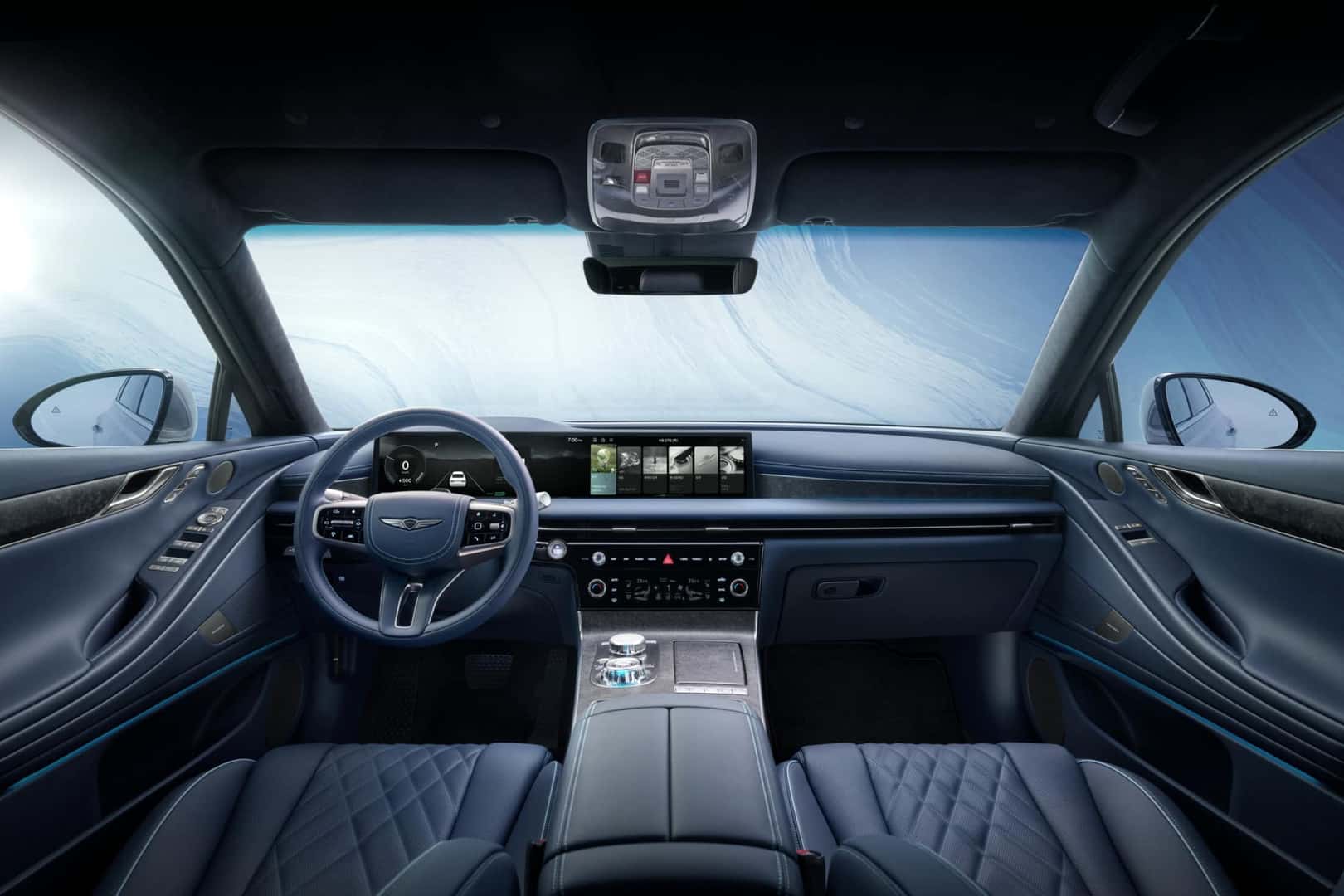
How to Use the Genesis Infotainment System
Genesis infotainment systems are designed with user-friendliness in mind, ensuring that drivers and passengers can easily access features without confusion. Here’s a step-by-step guide on how to use key aspects of the Genesis infotainment system to get the most out of your driving experience in Kansas City.
1. Setting Up Your Genesis Infotainment System
Before hitting the road, take a few minutes to personalize your system.
Initial Setup:
- Pair Your Smartphone:
- Navigate to the Settings menu on the infotainment screen.
- Select Bluetooth, then Pair New Device.
- Enable Bluetooth on your phone and select your Genesis vehicle from the list.
- Confirm the pairing code displayed on both devices.
- Set Up Genesis Connected Services:
- Download the Genesis Connected Services app on your smartphone.
- Register your vehicle by entering the VIN and following the prompts.
- Use the app to access features like remote start, vehicle diagnostics, and location tracking.
- Adjust Display Preferences:
- Go to the Display Settings menu.
- Customize brightness, contrast, and themes to suit your preferences.
2. Using Navigation Features
The Genesis infotainment system includes an advanced navigation system to guide you efficiently through Kansas City and beyond.
Setting Up a Destination:
- Tap the Navigation icon on the home screen.
- Use the on-screen keyboard or voice command to input your destination address.
- Select your desired route from the suggested options.
- Press Start to begin navigation.
Key Navigation Features:
- Voice-Guided Directions: Turn-by-turn instructions keep you focused on the road.
- Live Traffic Updates: Adjusts routes based on real-time conditions for the quickest path.
- Favorites: Save frequently visited locations like home, work, or your favorite Kansas City restaurants for quick access.
3. Controlling Audio and Entertainment
Enjoying your favorite music, podcasts, or audiobooks is effortless in a Genesis.
Audio Setup:
- Switch Between Sources:
- Tap the Media button on the touchscreen.
- Select from options like FM/AM radio, Bluetooth audio, USB, or streaming apps.
- Adjust Sound Settings:
- Access the Sound Settings menu.
- Adjust bass, treble, and balance for the Lexicon® Premium Sound System.
- Enable surround sound for an immersive audio experience.
Using Apple CarPlay or Android Auto:
- Connect your phone via USB or Bluetooth.
- Select Apple CarPlay or Android Auto from the menu.
- Use apps like Spotify, Pandora, or Audible directly from the infotainment screen.
4. Customizing Your Driving Experience
Genesis infotainment systems allow drivers to tailor the technology to their unique preferences.
Driver Profiles:
- Set up multiple driver profiles to save seat positions, mirror settings, climate control preferences, and infotainment settings.
- Profiles can be linked to specific key fobs for automatic adjustments.
Multi-View Display:
- Use the split-screen feature to view navigation on one side while keeping music or climate controls visible on the other.
Heads-Up Display (HUD):
- Adjust HUD settings via the Settings menu to display speed, navigation, and audio controls directly on the windshield.
5. Enhancing Safety with Infotainment Features
Genesis infotainment systems work seamlessly with safety features to improve your driving confidence.
Using the Surround-View Monitor:
- Activate the camera system by selecting the Camera button on the dashboard or when in reverse.
- Use the 360-degree view to navigate tight parking spots or crowded Kansas City streets.
Navigation-Based Smart Cruise Control:
- Set your desired speed and following distance via the cruise control buttons.
- The system uses navigation data to automatically adjust speed for upcoming curves or traffic congestion.
6. Leveraging Genesis Connected Services
Take full advantage of Genesis Connected Services to stay connected even when you’re away from your vehicle.
Key Features:
- Remote Start and Climate Control: Use the app to start your Genesis and pre-condition the cabin before stepping inside.
- Vehicle Diagnostics: Monitor tire pressure, fuel levels, and engine health from your smartphone.
- Find My Car: Easily locate your vehicle in a crowded Kansas City parking lot.
7. Keeping Your System Updated
Genesis regularly releases software updates to enhance functionality and security.
How to Update:
- Check for updates in the Settings menu under System Info.
- Download updates via Wi-Fi or a USB drive.
- Install updates following the on-screen instructions to keep your infotainment system running smoothly.
Tips for Maximizing Your Genesis Infotainment System
- Explore Features: Spend time learning the system’s capabilities to get the most out of your Genesis.
- Use Voice Commands: Minimize distractions by using the system’s robust voice recognition feature.
- Keep Software Updated: Ensure your system has the latest features and bug fixes by regularly updating it.
By mastering these steps, Kansas City drivers can fully enjoy the seamless connectivity and luxurious experience offered by Genesis infotainment systems.

How the Genesis Infotainment System Enhances Safety
Genesis infotainment systems aren’t just about entertainment—they actively contribute to a safer driving experience.
Safety-Driven Tech Integration
- Heads-Up Display (HUD): Keeps your focus on the road by displaying key information on the windshield.
- Navigation-Based Smart Cruise Control: Uses GPS data to adjust your speed based on upcoming curves or traffic conditions.
- Driver Attention Warning (DAW): Alerts you if it detects signs of distraction or fatigue.
- Surround-View Monitor: Provides a 360-degree camera view for safer parking and maneuvering.
Service Your Genesis Infotainment System at Genesis of Kansas City
To ensure your Genesis infotainment system continues to perform flawlessly, trust the experts at Genesis of Kansas City.
Why Service with Us?
- Certified technicians: Our team is trained to handle Genesis-specific technology and features.
- Software updates: Keep your infotainment system running the latest features and apps.
- Genuine parts and accessories: Upgrade your system with authentic Genesis components.
- Convenient scheduling: Book your service appointment online or by phone.
Learn More Today!
The Genesis infotainment system sets a new standard for luxury technology, offering Kansas City drivers a blend of innovation, safety, and elegance. From the sporty G70 to the family-friendly GV80, Genesis vehicles provide an unmatched infotainment experience that enhances every journey.
Visit Genesis of Kansas City today to explore the full lineup and experience the future of driving technology firsthand!